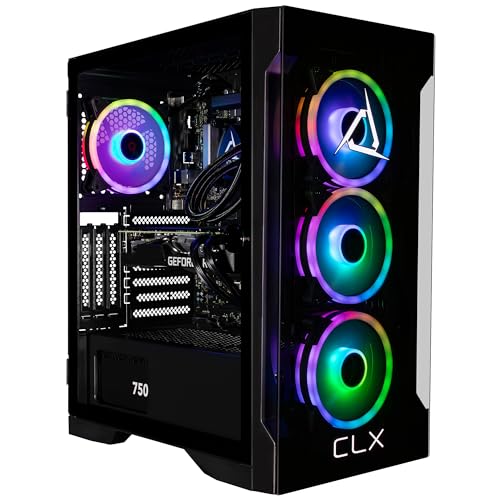
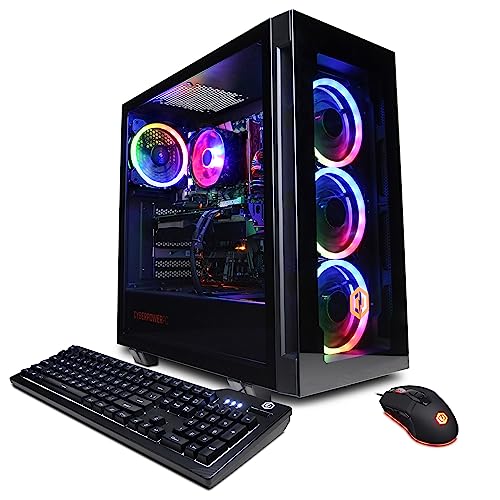
Computer Maintenance Guide – How to Clean and Keep Your PC Running FastRegular computer maintenance is one of the simplest and most effective ways to keep your PC running smoothly, extend its lifespan, and prevent unexpected slowdowns or hardware failures. Dust, heat, and outdated software are among the top causes of poor performance and early breakdowns.In this complete maintenance guide, we walk you through how to clean your PC properly, optimize software, and maintain good habits so your computer stays fast and reliable for years.Why Regular PC Maintenance Is Important
Without maintenance:
You can find cleaning kits, compressed air, and related accessories by browsing our PC Accessories category.Maintenance Tip
Make PC cleaning part of a seasonal routine (e.g., every spring and fall). Consistent small efforts prevent big problems later.Disclaimer
The information in this buyer’s guide is for educational and informational purposes only. It is not intended to replace professional computer repair advice. Opening your PC may void warranties and carries a small risk of damage if not done carefully. Always follow manufacturer guidelines and consider professional help if you are unsure. Individual results may vary.Ready to Keep Your PC Running at Its Best?
Browse our PC Accessories category today for cleaning supplies and maintenance tools. We focus on linking you to the best current deals from trusted retailers so you can maintain a fast and reliable computer.
Without maintenance:
- Dust buildup causes overheating and throttling (reduced performance)
- Fans become noisy and less effective
- Software clutter slows down boot times and everyday tasks
- Outdated drivers and bloatware increase the risk of crashes and security issues
- Prepare Your Workspace
Power off and unplug the PC. Work in a well-lit, clean area. Gather compressed air, microfiber cloths, isopropyl alcohol (for contacts), and a soft brush. - Clean the Exterior
Wipe down the case, monitor, and keyboard with a slightly damp microfiber cloth. Use compressed air for vents and ports. - Open the Case and Remove Dust
Use short bursts of compressed air to blow dust out of fans, heatsinks, and the power supply. Hold fans still with a finger or pen to prevent them from spinning too fast. - Clean the CPU Cooler and GPU
Pay special attention to the fins on the CPU cooler and graphics card. Dust here causes the biggest temperature increases. - Clean Keyboard and Mouse
Remove keys (if possible) or use compressed air and a soft brush. Wipe with a lightly damp cloth.
- Update Windows and Drivers: Keep your operating system and graphics drivers up to date.
- Uninstall Bloatware: Remove unused programs that run in the background.
- Manage Startup Programs: Disable unnecessary apps that slow down boot time.
- Disk Cleanup and Defragmentation: Use built-in tools to free up space (especially on HDDs).
- Run Malware Scans: Use reputable antivirus software regularly.
- Reapply thermal paste on the CPU every 2–3 years for best cooling performance.
- Check and organize cables inside the case for better airflow.
- Monitor temperatures using free tools like HWMonitor or Core Temp.
- Light cleaning: Every 1–2 months (exterior and quick dust blow-out)
- Full internal cleaning: Every 6–12 months, depending on your environment (pets, smoking, dusty rooms need more frequent cleaning)
- Software optimization: Monthly
You can find cleaning kits, compressed air, and related accessories by browsing our PC Accessories category.Maintenance Tip
Make PC cleaning part of a seasonal routine (e.g., every spring and fall). Consistent small efforts prevent big problems later.Disclaimer
The information in this buyer’s guide is for educational and informational purposes only. It is not intended to replace professional computer repair advice. Opening your PC may void warranties and carries a small risk of damage if not done carefully. Always follow manufacturer guidelines and consider professional help if you are unsure. Individual results may vary.Ready to Keep Your PC Running at Its Best?
Browse our PC Accessories category today for cleaning supplies and maintenance tools. We focus on linking you to the best current deals from trusted retailers so you can maintain a fast and reliable computer.